
Gaming clips into captioned Shorts, TikToks and Reels
A gaming clip is wide. Shorts, TikTok and Reels are tall, plenty of people watch them with the sound off, and the app's buttons sit over the bottom of the frame. Here is what a good vertical clip needs, how to make one in any editor, and how Substrike does it for a whole night of clips at once.
What a vertical clip needs
- A crop that finds the action. A 9:16 window cut out of a 16:9 frame shows less than a third of the width. A straight centre crop often misses the action, so the crop has to sit where things are happening.
- Captions people can read on mute. Big, word by word, and timed to the speech.
- Captions in the safe area. The like button, the comments and your caption text cover the bottom and right side of the screen on all three apps.
- A file the app accepts. 1080 by 1920 is the usual target.
Making one in a normal editor
Set up a 9:16 project, drop the clip in, and scale it so it fills the height. Move it left or right to keep the action in frame, and add keyframes where the action moves. Run auto captions, fix the words, restyle them big and bold, and lift them above the bottom of the frame. Export at 1080 by 1920.
Some editors can reframe for you, and they are worth trying. The catch is the same as always with clips: it is a lot of steps per clip, and a good night of gaming leaves you with a lot of clips.
How Substrike does it
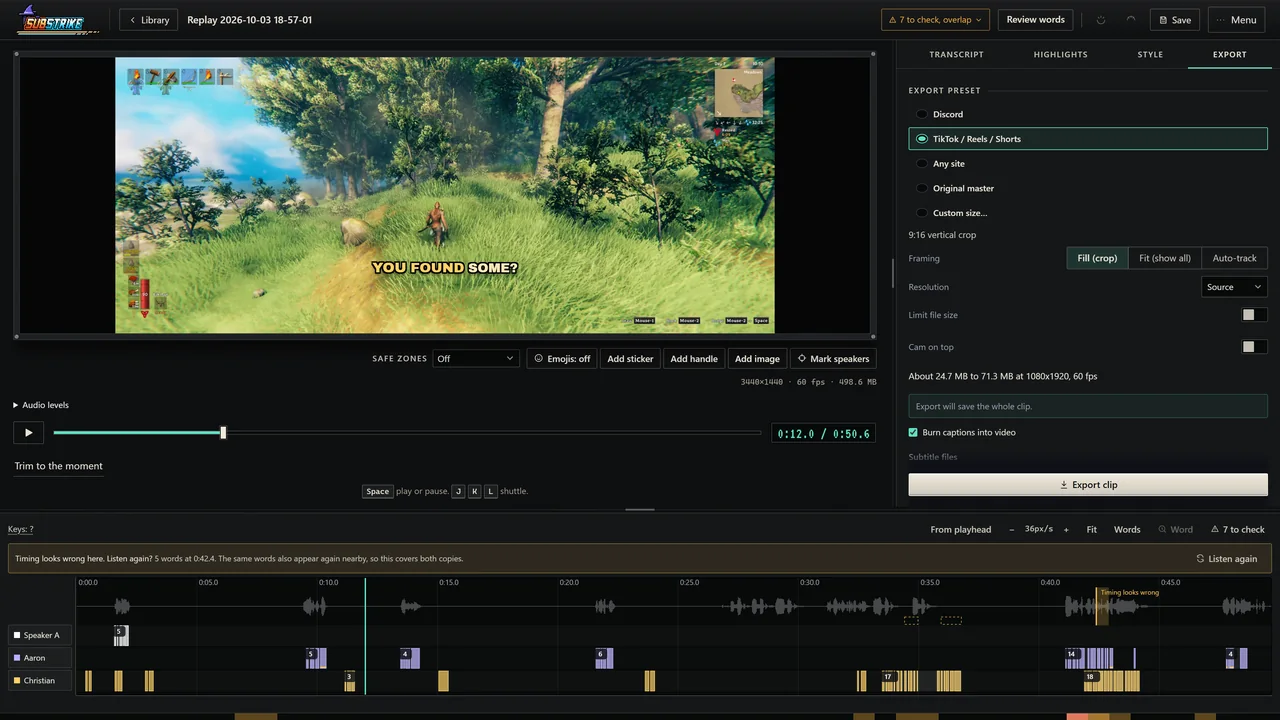
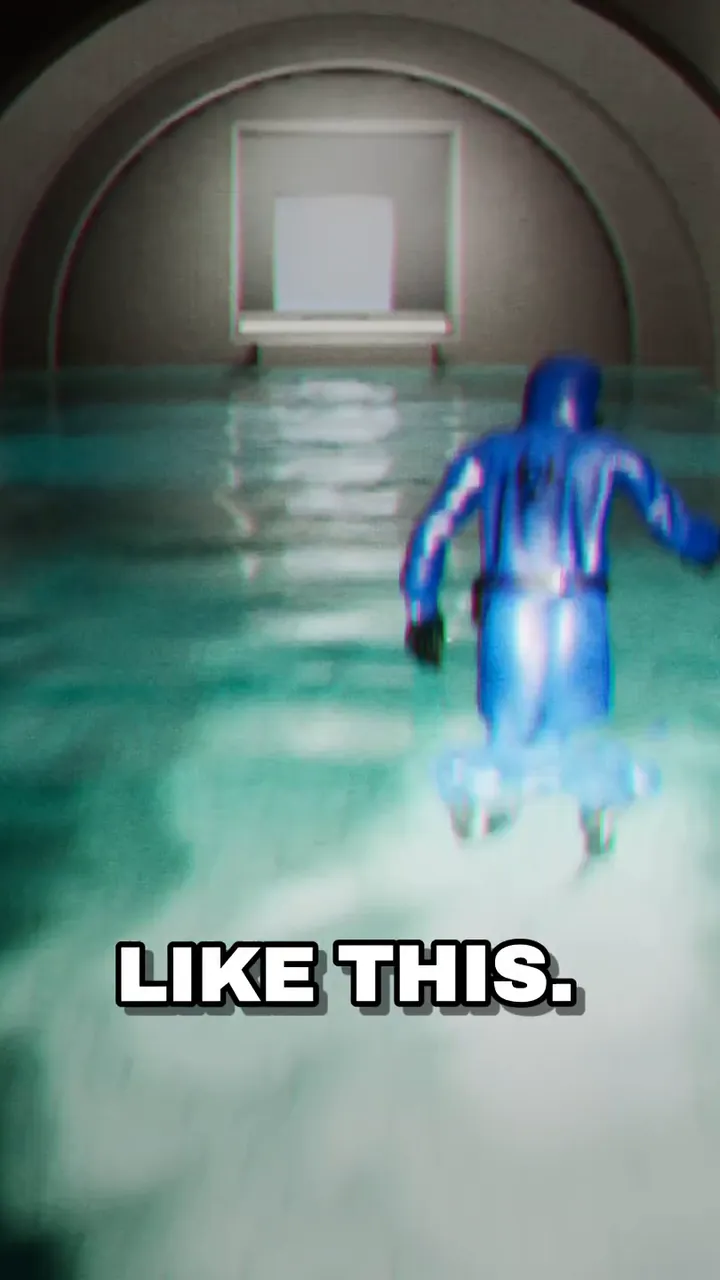
Pick the TikTok, Reels and Shorts preset and Substrike makes a 9:16 crop that follows on-screen movement. When it lands on the wrong part of the screen, Fill or Fit puts it right. Vertical 1080p exports come out at 1080 by 1920.
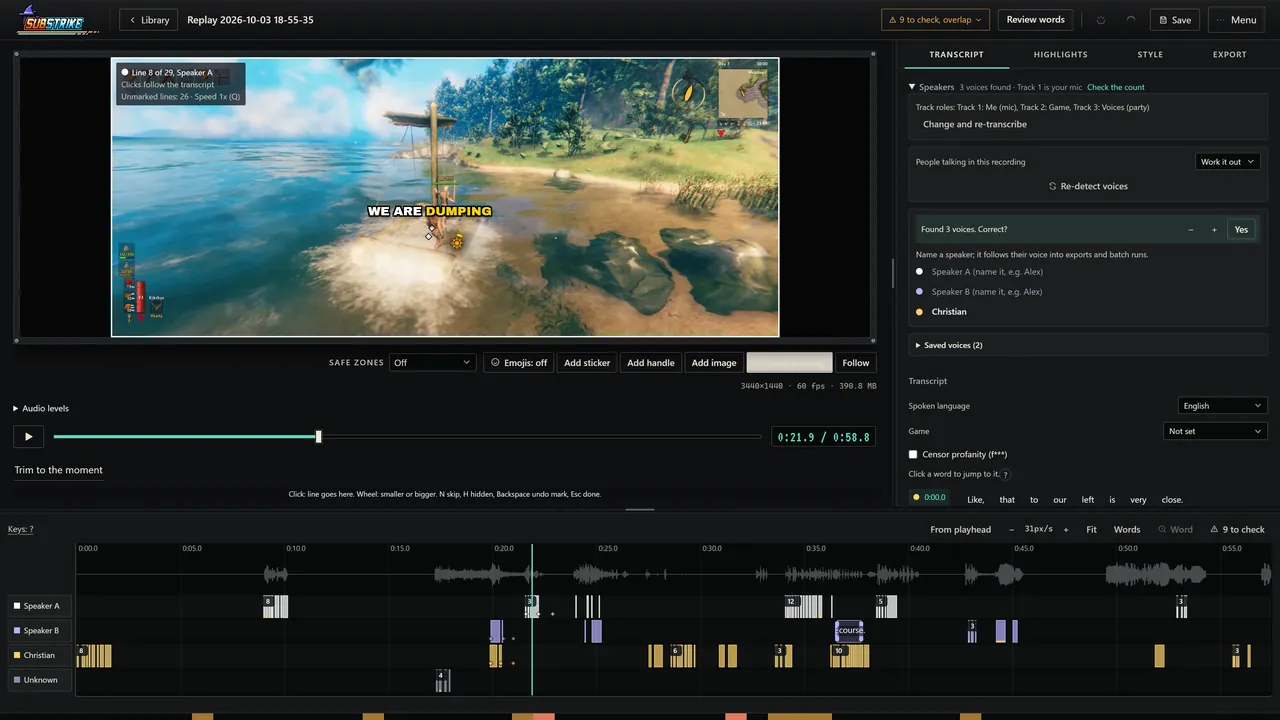
The captions are timed to each word and sit above the band where those apps put their buttons and text, kept to two lines. There are seven caption styles with their fonts built in. Each friend keeps their own colour, and single words can pop or shake. Need one line somewhere else? Right-click a word and set its caption to Top, Middle or Bottom, or drag it in the preview.
A few extras that matter for short video:
- Cam on top stacks your webcam over the game, with the captions sitting where the two meet.
- Overhead captions float a line above the character who is talking, and can follow them as they move.
- Trim to the moment cuts to the setup and the reaction, so the clip starts where it gets good.
- Stickers put your handle or a picture on screen.
- Post text. A local model on your PC drafts a title, a hook and hashtags, each with a copy button.
Substrike makes the file. You upload it to TikTok, YouTube or Instagram yourself. For Discord it can post the export for you once that is set up.
Doing a whole night at once
Point the watch folder at your clips folder (there are guides for OBS, NVIDIA and Steam) and each clip is captioned as it saves. At the end of the night, the night summary gives you Post, Hold and Bin for each clip. On a long recording, Find highlights ranks the loud, excited stretches and the montage builder joins the best ones into one post.
Vertical clip questions
Does the crop follow the player?
It follows movement on screen rather than a particular person. Fill and Fit are there for the times it guesses wrong.
Will the captions sit under the TikTok buttons?
No. Vertical captions sit above the band where TikTok, Reels and Shorts put their buttons and text, and keep to two lines. You can also place a caption by hand.
Can it post to TikTok, YouTube or Instagram for me?
Not yet. It makes a file sized and framed for each app, and you upload it. Discord is the exception, where it can post the export for you.
Can I keep a landscape version for YouTube too?
Yes. Export again with the original size, or any size you set. The captions and speaker colours carry over.
Try it on tonight's clips
Export one of your clips as a 9:16 and check it on your phone. The trial lasts 7 days from your first export, asks for no card or account, and adds a 5 second Substrike card to the end of trial exports.