
Your replay clips, captioned in each friend’s colour.
Substrike watches the folder your replay clips land in and captions each new one on your Windows PC. It marks any word it was not sure of, so you know where to look before you export.
Download free trial Buy for $29 USD 
One payment. No subscription. Seven days free from your first export.
No card or account needed. Trial exports end with a 5 second Substrike card.
The Microsoft Store version updates through the Store.
$29 USD for the first 300 buyers, then $39 USD. One payment, 14 day refund.
Fewer word errors than AssemblyAI, ElevenLabs and Deepgram in my 30 clip test. 30 clips of our own voice chat, checked word by word. A small test, and the method is written up. See the results.
Watch it work
A minute of clips going in raw and coming out captioned.
What comes out
Two frames from my exports of one night, straight out of the batch.
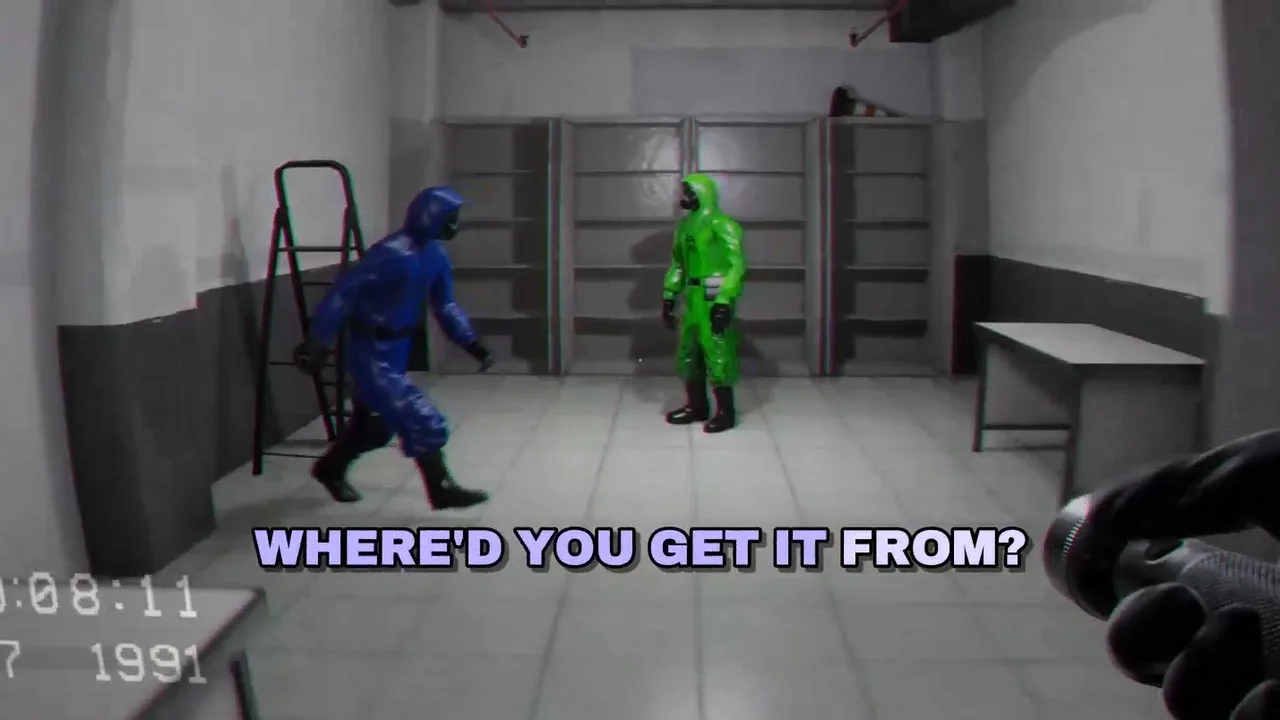
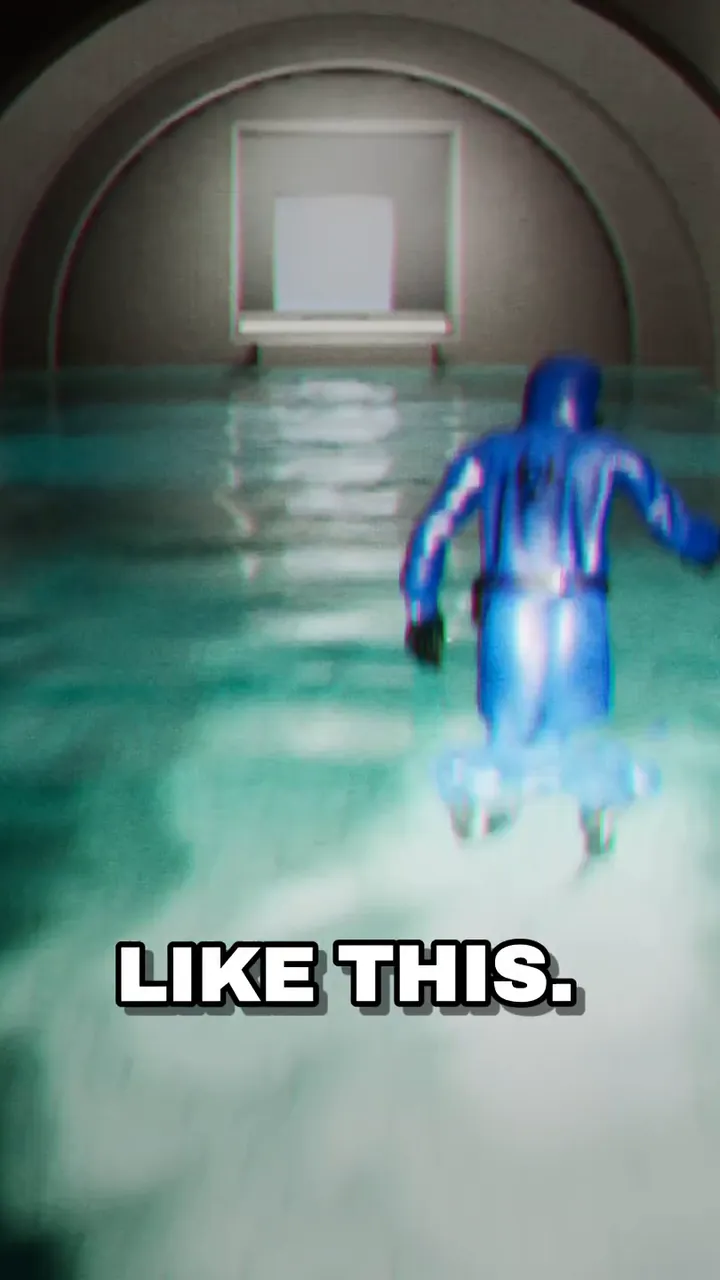
In a stereo recording the caption drifts toward the side the voice came from, and a shouted word grows a little. That is the Living captions setting, on by default in every English style. This clip is the game's own proximity chat, which comes in as mono, so the captions stay centred.
How it works
Point it at your replay folder
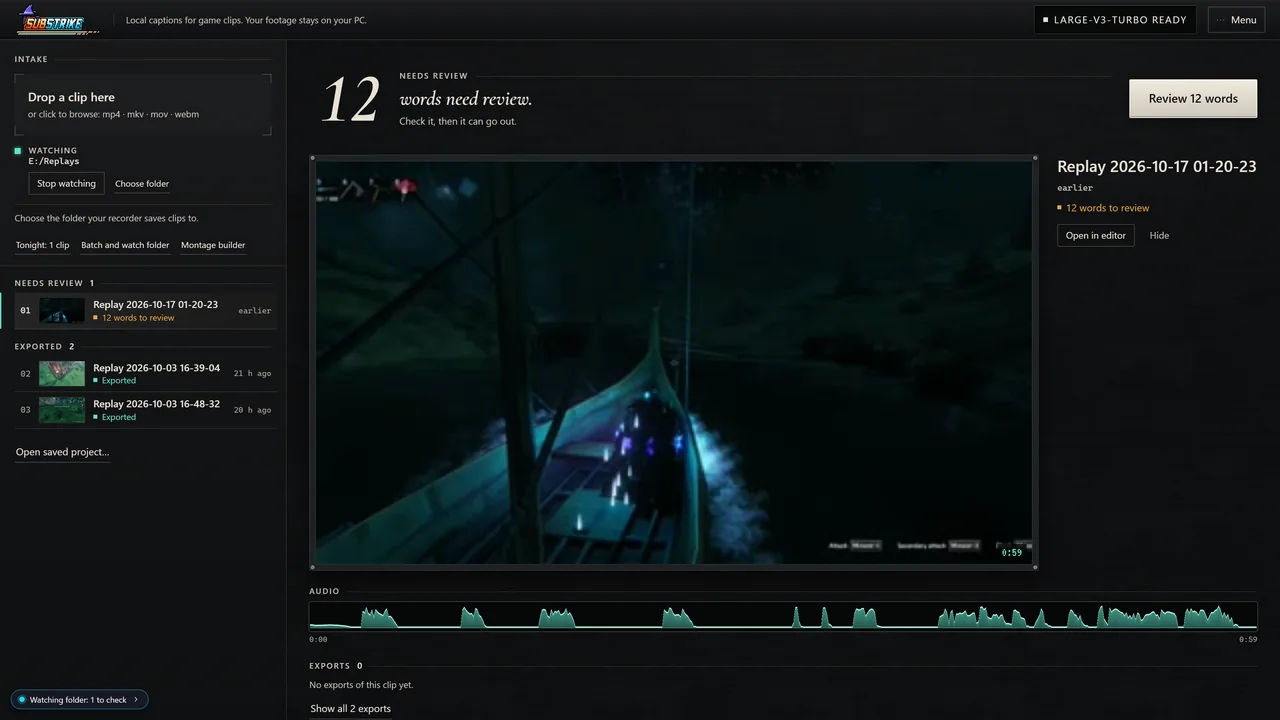
Turn on the watch folder and choose where OBS saves its replays. Each clip you save is queued once OBS has finished writing it. A folder of older clips goes in the same way, filtered by date if you only want Friday's.
Clips from the NVIDIA App, Steam Game Recording, Xbox Game Bar and Medal go through the same folder. What it works with.
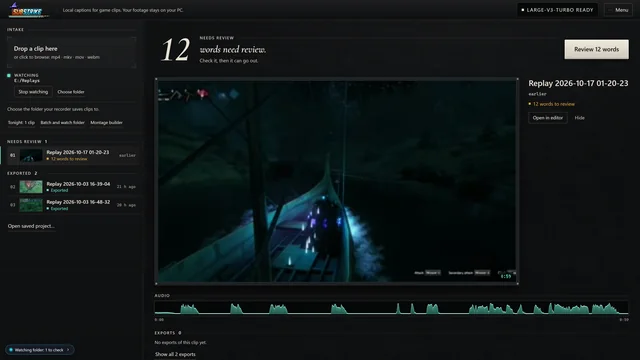
The library with the watch folder on and a new replay waiting for review. Check the words it flagged
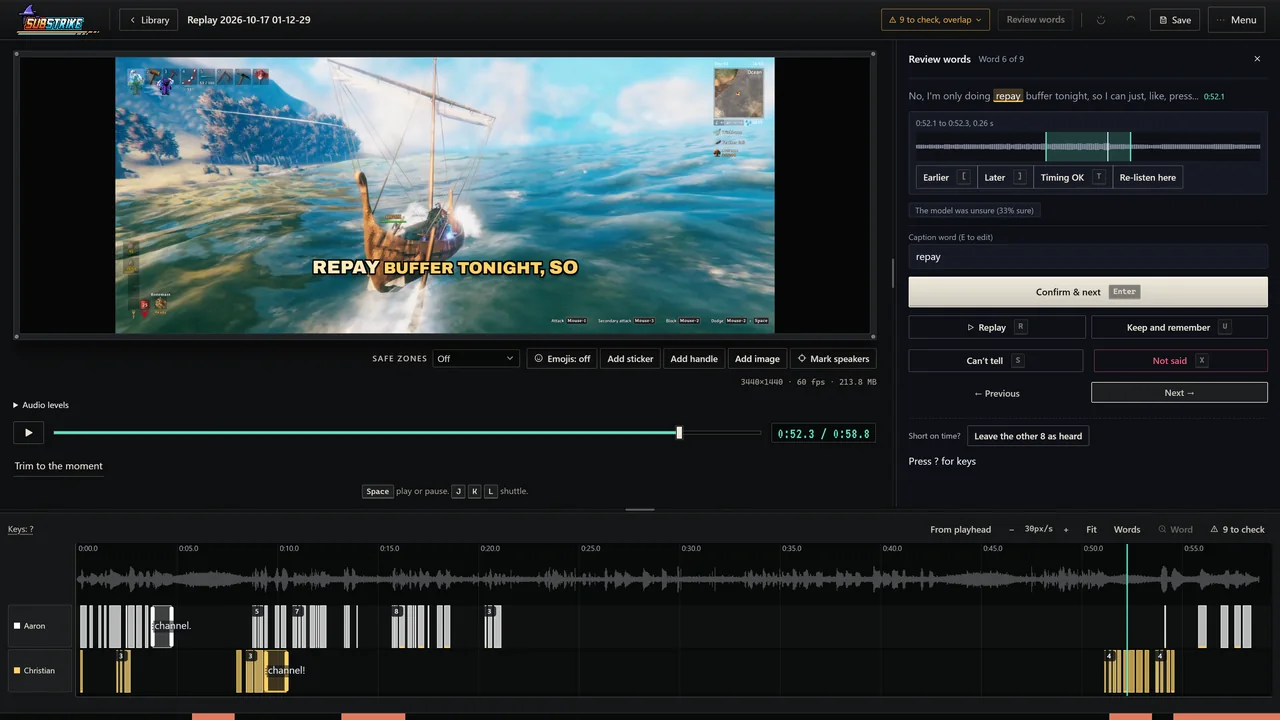
The words the model was unsure of come up one at a time, with that bit of audio ready to replay.
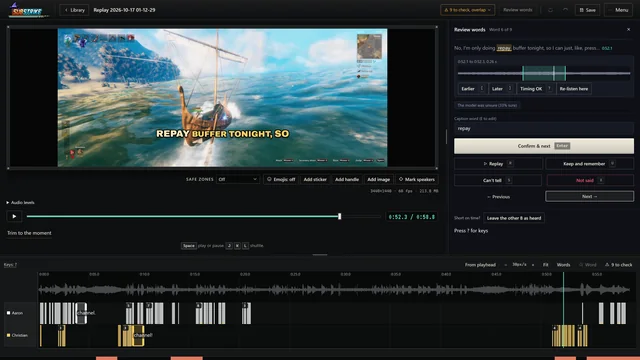
Review words on one of my clips. The model was 33% sure about repay, so it asks. Export for where it is going
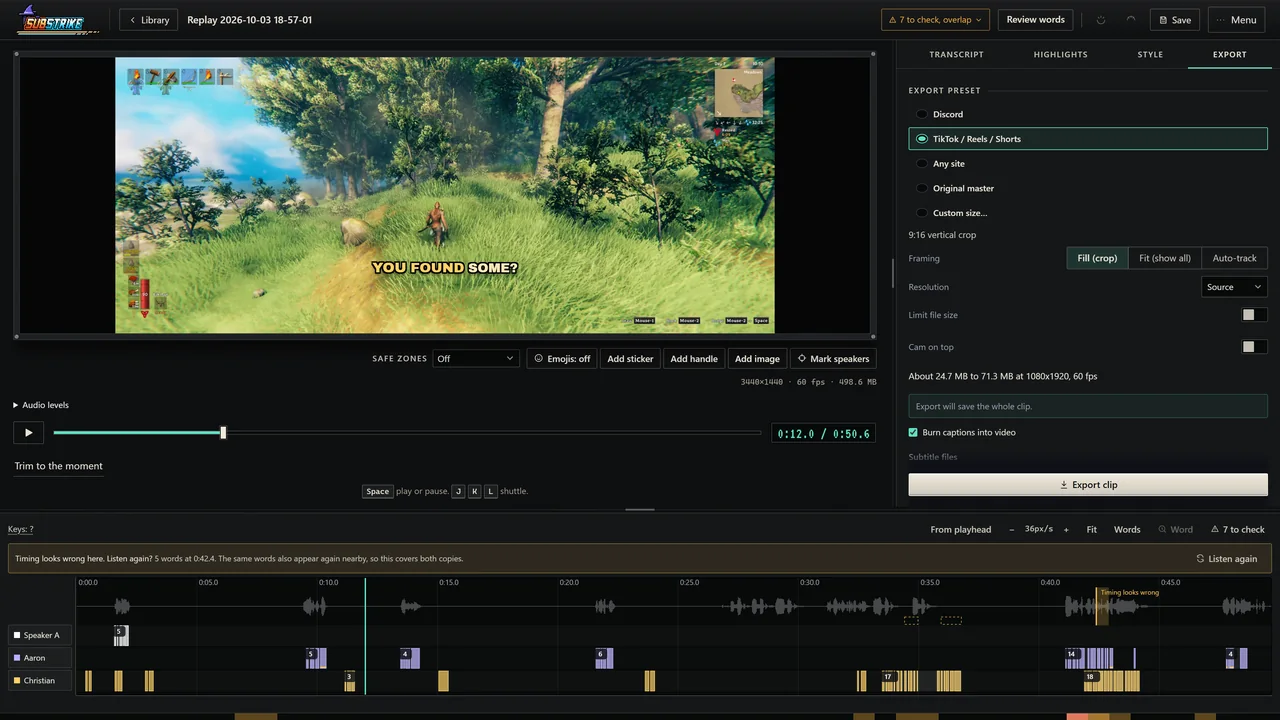
Pick a caption style and a destination. TikTok, Shorts and Reels get a 9:16 crop with the safe zone drawn on the preview. Discord gets a file under your server's size limit, or goes straight to your server once that is set up.
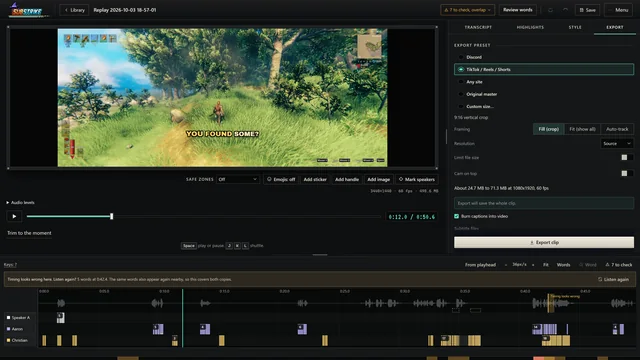
The Export tab with the vertical TikTok, Reels and Shorts preset.
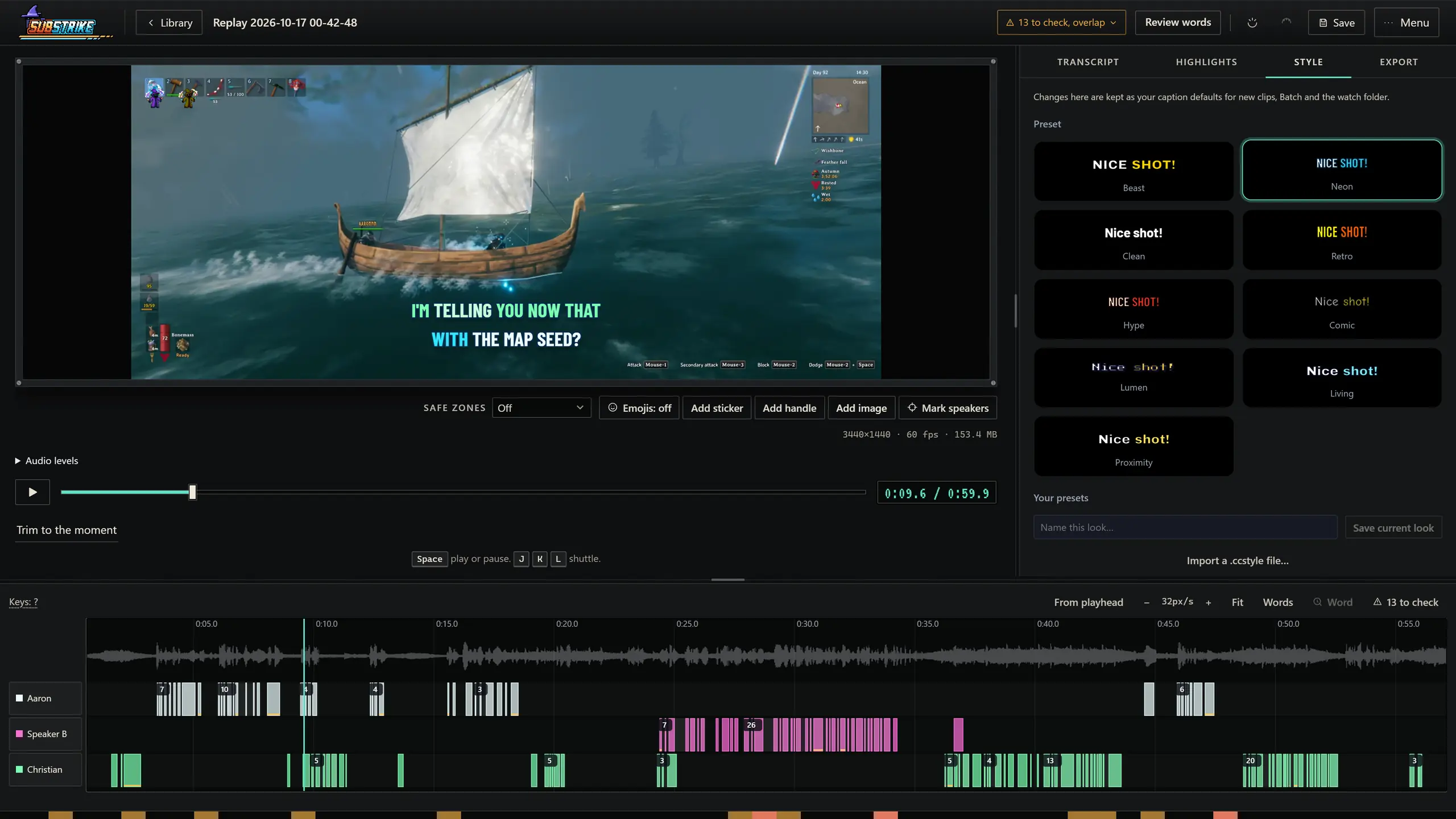
Caption styles
Seven built in styles, fonts included, so the export matches the preview. Each friend keeps their own colour in all of them. Font, colours, size and where the caption sits can be changed.
The preview is drawn by this page with the same fonts the app ships. The line is from the clip above. Lumen, the style, is named after Lumen, the mascot.
The app itself comes in four themes. See the app themes.
Features
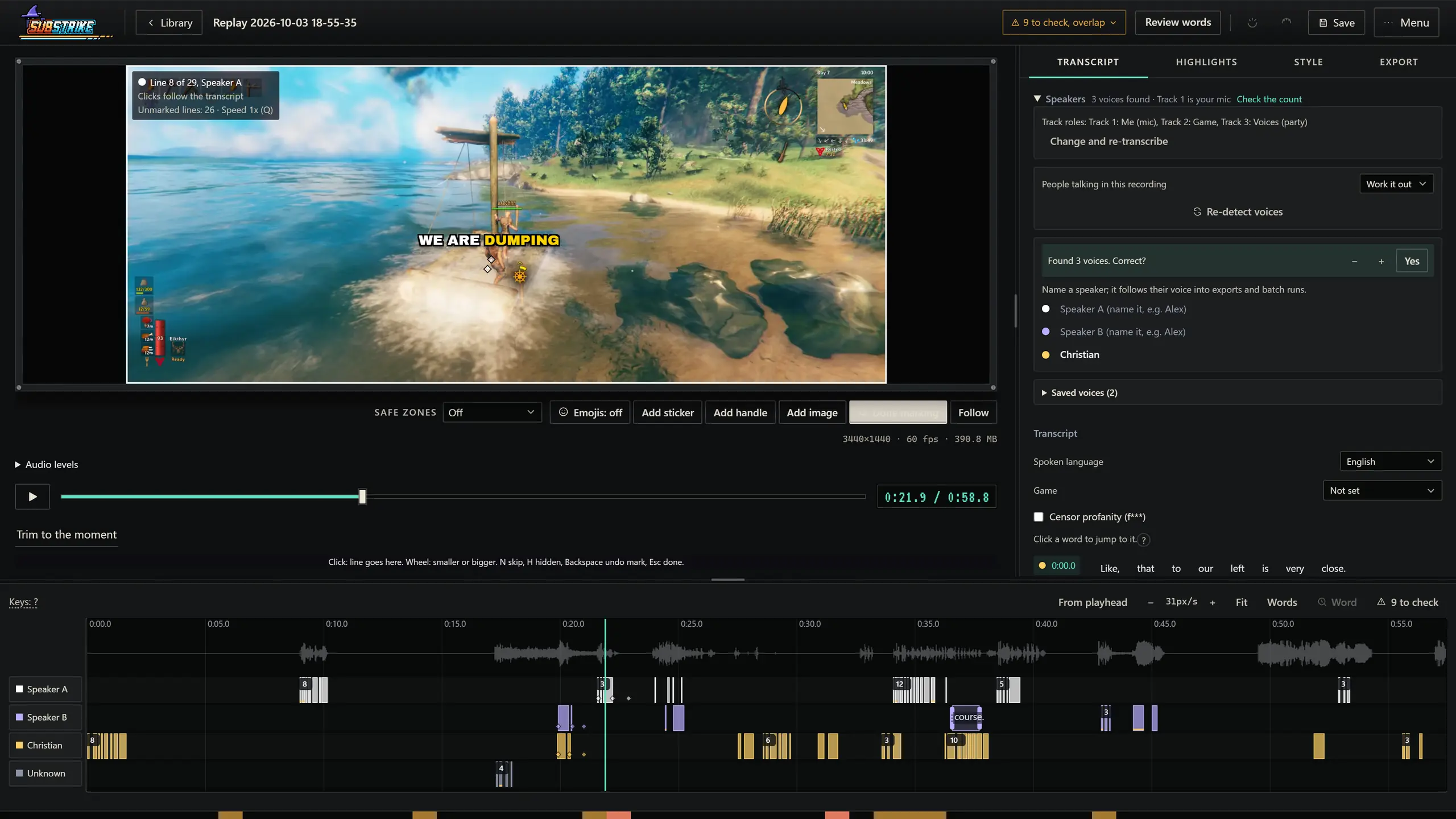
Captions above the speaker
Play the clip, click the character who is talking, and their line floats above them. Switch on follow and the caption stays with them as they move, so you do not have to click again.
Stickers and word effects
Put your handle, a picture or a line of text on screen, in one of five looks. Shake or highlight a single word when it deserves it. Give each friend a picture that lights up while they talk.
Names that never go out
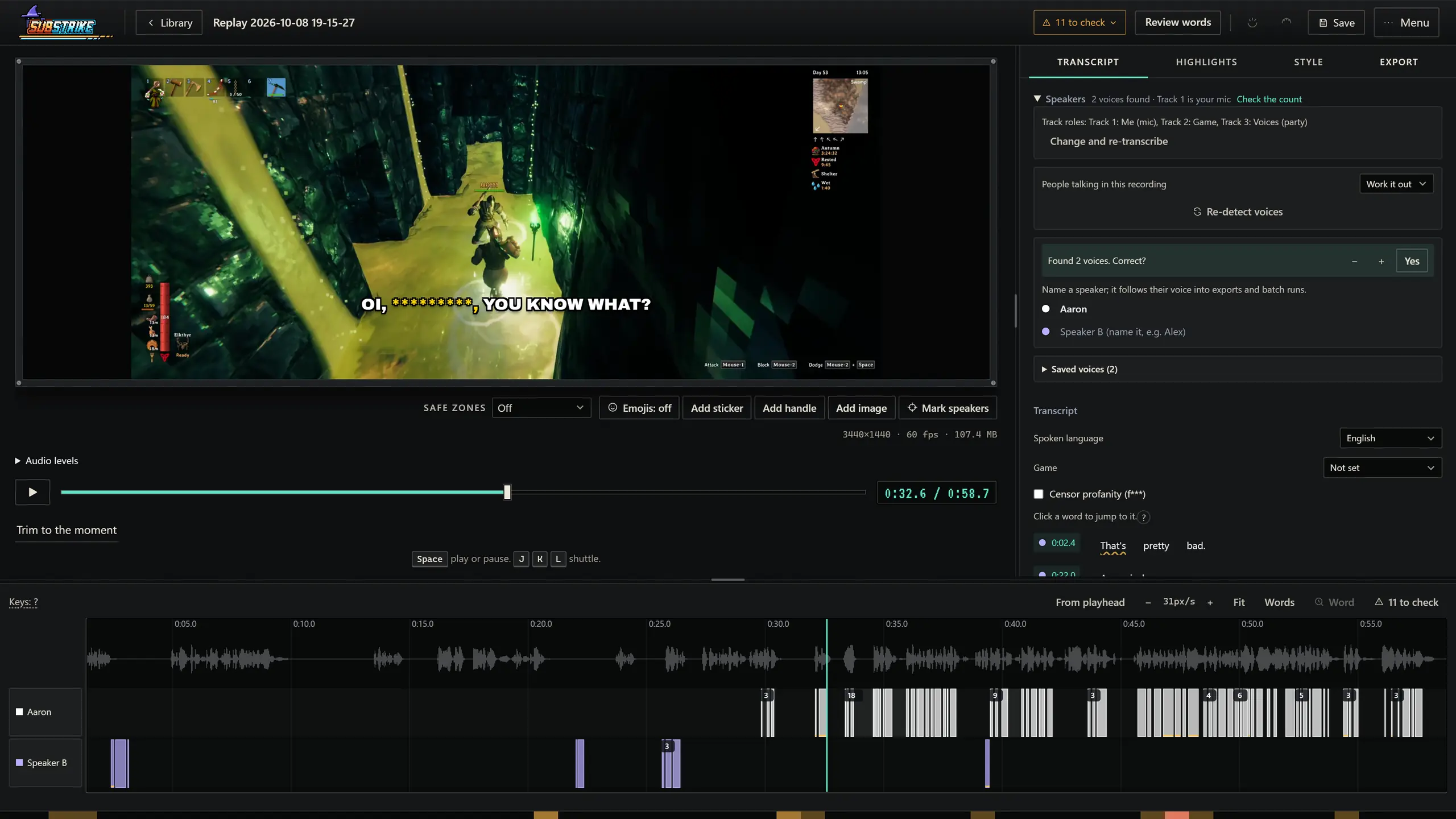
Add names and phrases to a never broadcast list and they are hidden in the captions and the subtitle files. You can also mute the sound under them or cover it with a beep. The list stays on your PC.
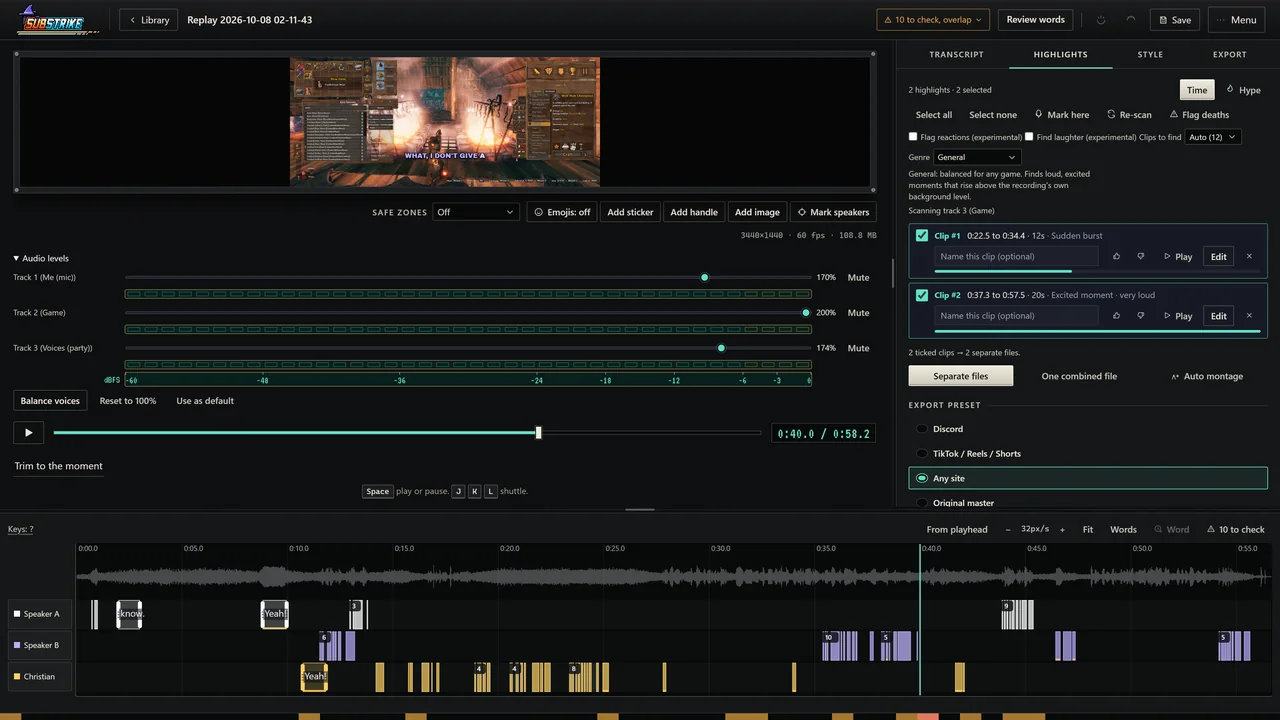
A lane for every speaker
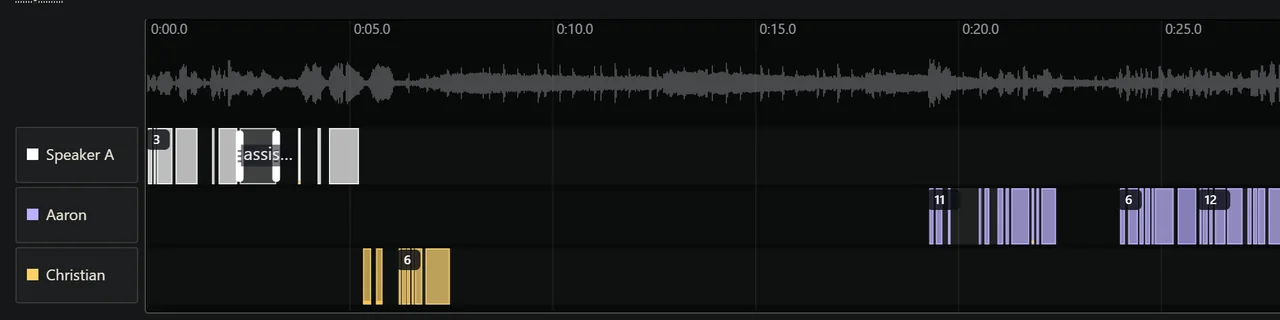
Voices are grouped automatically. Each one gets a lane on the timeline and a colour in the captions. Saved voices are labelled in later clips. A wrong speaker is one click to move.
Find highlights
On a long recording, Find highlights ranks the loud, excited stretches by sound, tuned to the game's genre. Tick the ones you want. The montage builder then joins highlights from several clips into one post.
A whole night in one batch
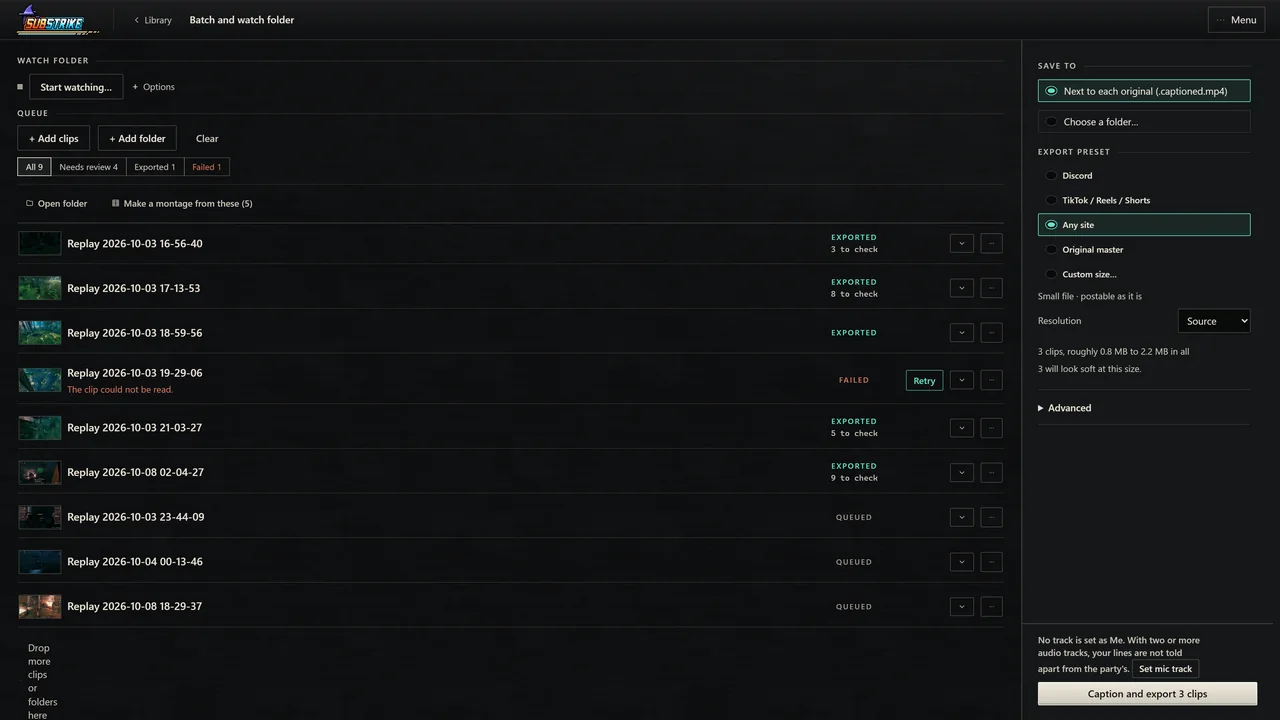
Clips go through in turn and land in a dated folder. The ones the app has doubts about go to a check folder instead, with the reason on the row, so you see them before they go anywhere. The queue is saved as it runs, and after a crash or a restart it picks up where it stopped.
Also in Substrike
- New in 1.0.12: place a caption by hand. Right-click a word and pick Top, Middle or Bottom, or drag the caption in the preview.
- Trim to the moment cuts a clip to the setup and the reaction.
- Cam on top puts your webcam above the game in a vertical export, with the captions on the seam.
- A night summary page at the end of a batch, with Post, Hold and Bin for each clip.
- OBS Replay Sync picks up each saved replay and uses the scene name as the game. It is off until you switch it on.
- Game events from a supported game’s own log files become highlights, and game word packs hint the speech model with its names.
- A Models panel shows which models are on your PC and what ran on each clip.
- A free Stream Deck plugin turns watching on and off and captions the latest clip.
Why I made this
My name is Christian.
I make Substrike on my own, from Australia.
I started it because when I first tried to record clips and caption them, I was using online tools that put a watermark on everything and wanted a subscription, and even the free versions did not work very well. I was getting very fed up.
I like role-playing games, adventure games and sometimes shooters. My friends got me into horror games, which are not really my forte, but I have been enjoying them for the funny moments and the memories we make. That is why I started recording all of it. I wanted an easy way to caption it, so I could enjoy the videos on mute and so people who are hard of hearing could enjoy them too.
It is a small group, between two and sometimes eight of us. Stardew Valley, Age of Empires II and Escape the Backrooms are on rotation, and nearly all of Substrike's testing has been on our own recordings.
Cheers, Christian
What it costs
$29 USD for the first 300 buyers
Then $39 USD.
One payment. The licence does not expire, covers up to 2 of your own PCs, includes commercial use, and every 1.x update is included.
The subscription caption tools I compared start at $144 USD a year. The comparison.
Download free trial Buy for $29 USD
Checkout shows the price in your currency, including any GST or VAT. Payments are handled by Paddle, the merchant of record. Sold by Chrono X, Australia, ABN 34 213 253 985.
The trial and the refund
- 7 days of full use from your first export. No card, no account.
- Trial exports end with a 5 second Substrike card. Licensed exports do not.
- 14 day refund for any reason. Your Australian Consumer Law rights continue after that.
- Your clips are captioned on your own PC and never uploaded for it.
Before you download
More answers on the how it works page.
My editor already does auto captions. Why this?
Substrike watches your replay folder and queues each new clip by itself, and it takes a whole folder of old clips in one go. It tells your friends apart and keeps their colours, remembers a voice once you have named it, and flags the words it was unsure of, so the check starts there.
How long does a clip take, and will it slow my game?
On my PC, a Ryzen 7 9800X3D, a 2 minute clip took 2 to 3 minutes to reach a captioned export, without the AI cleanup step. Slower PCs take longer. I have not measured the effect on frame rates, so run big batches after you finish playing. The numbers.
Why does Windows warn me about the installer?
The installer is signed by Chrono X. A brand new signature can still show a SmartScreen notice for a while as it builds reputation. If it does, select More info, check the publisher says Chrono X, then Run anyway. The download page lists the installer’s SHA256 so you can check your copy, and updates are signature checked. The Microsoft Store version is also available. If Smart App Control blocks it, please do not turn that off. Email me and I will help.
Does it upload my footage?
No. The captioning is all local. A clip leaves your PC only if you post it to Discord, or send me one for support. The privacy notice lists every connection the app makes.
How does the trial work?
Install it and it captions 15 seconds of your own clip with a small model that ships in the installer, before the big model downloads. Your 7 days start with your first export. After that you can still open the app, caption and edit, but exporting needs a licence.
Ask before you buy
The Substrike Discord is where I am most days. Ask anything there, or email support@substrike.com.au.
Try it on your own clips.
Install it, point it at your replay folder, and check the first clip it captions.
Download free trial Buy Substrike
The Microsoft Store version updates through the Store.