
Captions for video podcasts and talking videos
A podcast with two or three people needs captions that show who is talking, a subtitle file for YouTube, and short vertical clips to promote each episode. I built Substrike for gaming voice chat, which turns out to be the same problem. Here is how to caption a multi speaker video, with or without it.
The usual ways to caption a podcast video
- YouTube automatic captions. Free once the episode is up. You can download them from YouTube Studio as a subtitle file and fix them. They do not say who is speaking.
- An editor with auto captions. Good for burned in captions on a short clip. On a full episode you are scrolling through a very long transcript to fix names and split lines between speakers.
- A transcription service. Some label speakers. Your recording is uploaded to someone else's servers, and many charge by the minute.
All of those can work. What I wanted was the speaker labels and colours, done on my own PC, with no per minute bill.
A colour and a name for each speaker
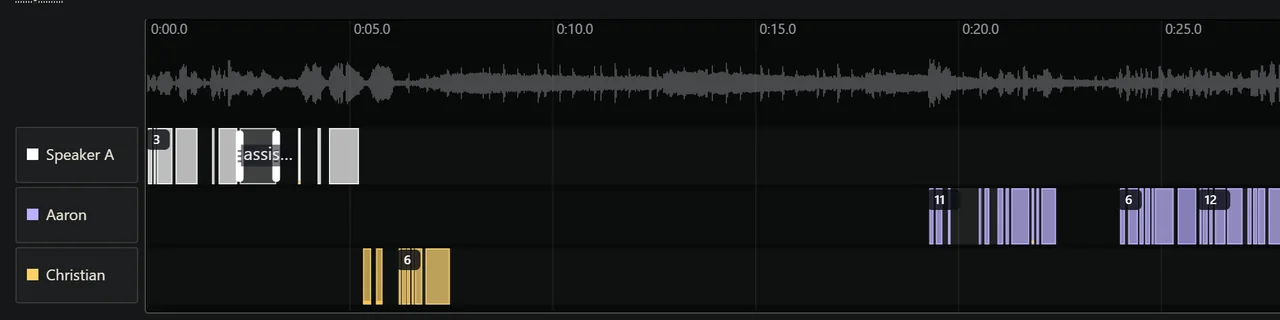
Substrike runs speech recognition on your PC and then works out who spoke each word. Each speaker gets a lane on the timeline and a colour in the captions. You can set how many people are talking, and a word on the wrong person is one click to move.
Name a host once and choose Remember, and Substrike keeps a voiceprint, a few numbers and no audio. Their name is filled in on the next episode without you doing anything. Speaker pictures light up while that person talks, which suits a video podcast nicely. When two people talk at once, both are captioned on their own rows.
Guest names, show names and in jokes go on the Names and jargon list once. They are passed to the speech model as a hint, and a find and replace rule handles any word it keeps getting wrong.
What you get out
- The video with captions burned in, at the original size for YouTube or any size you set.
- An SRT file beside the video for YouTube or your editor, or the styled ASS version if you want the look to travel with it.
- A plain .txt transcript beside an export, when you ask for one.
- 9:16 clips for Shorts, TikTok and Reels, with the captions kept clear of the app buttons. The vertical clips guide covers that side.
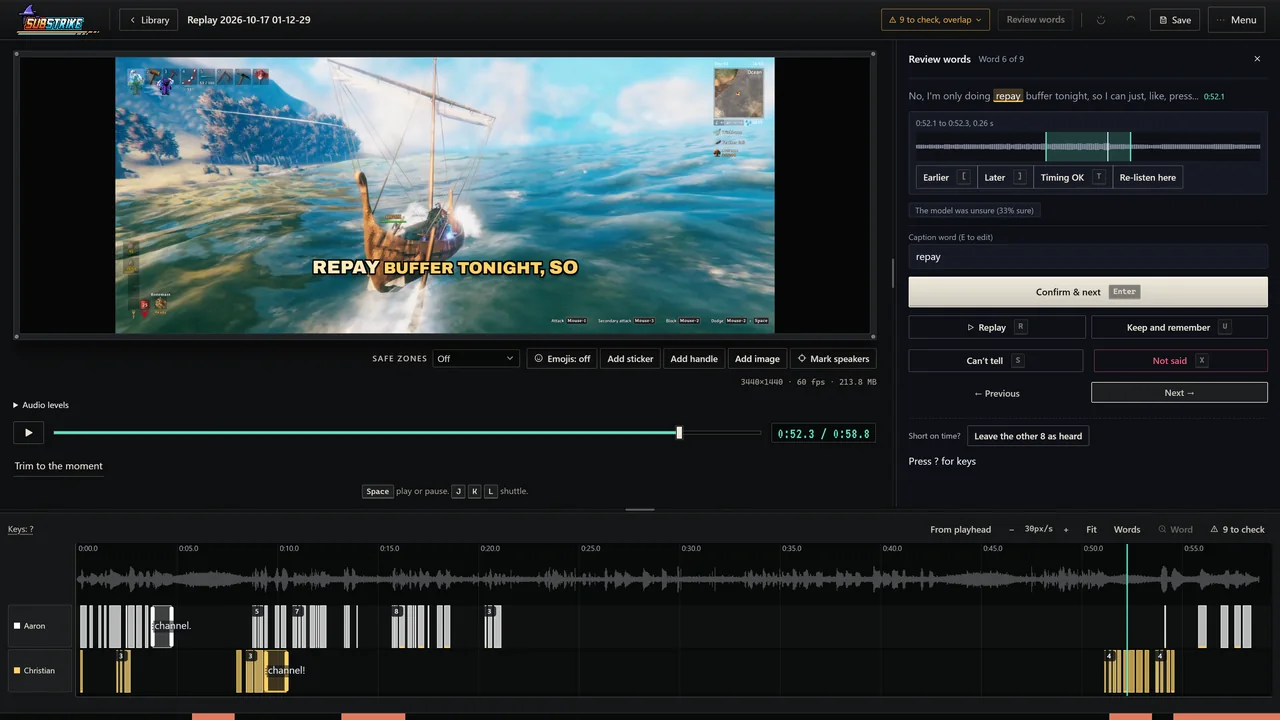
Review words steps through only the words the model doubted, so checking an episode starts with the likely mistakes. The never broadcast list hides names or phrases you do not want in the captions and subtitle files, and can beep the sound under them.
Good to know before you try it
My accuracy testing is on gaming voice chat, not studio podcasts, so I have no number for clean podcast audio yet. English is the language I have measured. Five more languages are in beta: Spanish, Portuguese, French, German and Italian. Find highlights ranks loud, excited stretches by sound, which suits a lively show more than a calm interview. Confident mistakes are not flagged, so watch an episode through before it goes out. The full list is on Good to know.
Podcast caption questions
Is Substrike only for gaming?
No. Gaming voice chat is what I designed it for, and it works on recorded group calls, stream VODs and video podcasts as well. The accuracy numbers I have published are from gaming chat only.
Does it make an SRT file for YouTube?
Yes. Tick Also save subtitles (.srt) and an SRT file is saved beside each video, ready for YouTube or your video editor.
Does my recording get uploaded?
No. The whole job happens on your PC. Nothing leaves it unless you post to Discord or send me a clip for support. The privacy notice has the full list of connections.
Does it run on a Mac?
Not yet. Substrike needs 64 bit Windows 11. A Mac version is on the roadmap.
Try it on your next episode
Run your last episode through it and see how the speakers come out. It is free for 7 days from your first export, with no card or account, and trial exports end with a 5 second Substrike card.